Color Palettes in Canva: How to Create and Use Custom Color Schemes
· Coloracci Team
Why Color Consistency Matters in Canva
Canva has become the go-to design tool for millions of creators, marketers, and small business owners. But one of the most common mistakes Canva users make is inconsistent color usage—picking colors randomly for each new design, resulting in a disjointed brand presence across social media, presentations, and marketing materials.
The good news? Canva has powerful color tools built in. This guide shows you how to use every one of them to create, manage, and maintain beautiful, consistent color palettes.
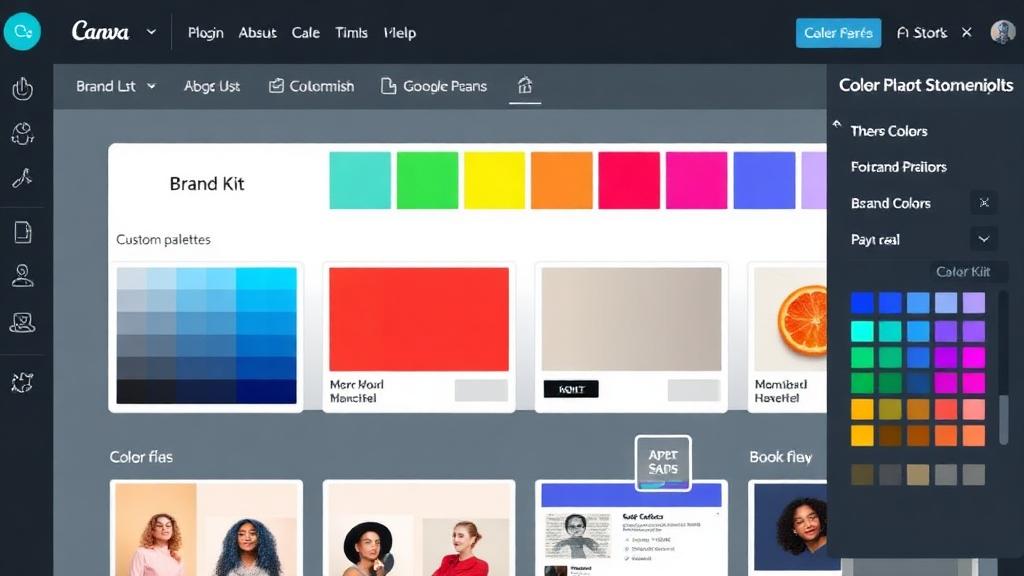
Setting Up Your Brand Kit Colors
Canva's Brand Kit (available in Canva Pro, Teams, and Enterprise) is your color command center.
Step-by-Step Brand Kit Setup
- Click Brand Kit in the left sidebar (or navigate to canva.com/brand)
- Under Brand colors, click + Add palette
- Name your palette (e.g., "Primary Brand Colors")
- Click the + button to add individual colors
- Enter your hex codes—for example:
- Primary:
#6C3CE1(vibrant purple) - Secondary:
#FF6B35(energetic orange) - Accent:
#00D4AA(fresh teal) - Neutral Dark:
#2D2D3A - Neutral Light:
#F5F5F7
- Primary:
- Click Save
Organizing Multiple Palettes
You can create multiple palettes within Brand Kit:
- Primary palette: Core brand colors (3-5 colors)
- Secondary palette: Extended colors for variety
- Social media palette: Optimized for social content
- Seasonal palette: Campaign-specific colors
This organization ensures your team always picks from approved colors, even as campaigns change.
Using the Canva Color Picker
Canva's built-in color picker appears whenever you click on a color-adjustable element.
The Eyedropper Tool
Click the eyedropper icon in the color picker to sample any color from your design or uploaded images. This is useful for:
- Matching text color to an element in your photo
- Creating color-coordinated graphics from product shots
- Ensuring headline colors complement the background
Custom Color Input
Enter colors in three formats:
- Hex:
#FF5733 - RGB: Via the sliders
- HSL: Not directly supported—convert first using a hex to RGB to HSL converter
Recently Used Colors
Canva remembers your recently used colors, shown at the top of the color picker. This is helpful but can become cluttered. Brand Kit colors always appear separately for easy access.
Extracting Color Palettes from Photos
One of Canva's best features for color discovery is photo-based palette extraction.
Method 1: Upload and Extract
- Upload an image to your design
- Click on any element you want to recolor
- Open the color picker
- Click Photo colors at the top
- Canva displays colors extracted from your uploaded images
- Click any extracted color to apply it
Method 2: Style Tab
- With a design open, click the Design tab in the top toolbar
- Browse Styles for curated color + font combinations
- Click a style to apply it to your entire design
- Customize individual elements afterward
Getting Better Extractions
For richer palette results from photos:
- Use high-quality, well-lit images
- Photos with clear color blocks extract better than busy scenes
- Nature photos (sunsets, florals, landscapes) yield the most harmonious palettes
For more precise AI-powered extraction, try creating color palettes from images with AI.
Canva's Suggested Palettes
When you're starting from scratch, Canva offers palette suggestions.
Default Palettes
In the color picker, scroll down past your custom colors to find Canva's curated palettes organized by mood:
- Bold & vibrant: High-saturation, high-contrast combinations
- Warm & earthy: Browns, terracotta
#C77B4A, olive#6B7B3A - Cool & calm: Blues, teals, soft grays
- Pastel & soft: Light, desaturated tones
Template-Based Colors
Every Canva template comes with a pre-selected color palette. To adopt a template's colors:
- Start with a template you like
- Note its color palette (visible in the color picker)
- Add those colors to your Brand Kit for future use
- Replace template content with yours while keeping the colors
Color Accessibility in Canva
Accessible design isn't optional—it's essential for reaching all audiences.
Checking Contrast
While Canva doesn't have a built-in WCAG contrast checker, you can:
- Note your text color and background color hex values
- Check them with an external color contrast checker
- Aim for 4.5:1 ratio for normal text, 3:1 for large text
Accessible Color Choices
When building your Canva palette, consider:
- Never rely on color alone to convey information
- Ensure sufficient contrast between text and backgrounds
- Test with colorblind simulation tools
- Use patterns or icons alongside color coding
Learn more in our complete color accessibility WCAG guide.
Creating Consistent Social Media Content
Color consistency across social platforms builds brand recognition.
Platform-Specific Color Tips
Instagram: High-saturation colors perform well in feeds. Your palette should include at least one "scroll-stopping" bright accent color like #FF3366 or #00D4FF.
LinkedIn: Professional palettes work best—navy #0A2463, dark gray #333333, and one brand accent color. Avoid overly playful combinations.
TikTok/Reels: Bold, high-contrast colors grab attention in thumbnails. Think primary colors: #FF0000, #FFDD00, #0066FF.
Pinterest: Warm colors (red, orange, pink) statistically get more repins. Ensure your palette includes at least one warm option.
Building a Social Media Template System
- Create a Social Media folder in Canva
- Design 5-10 template variations using your Brand Kit colors
- Lock the color-critical elements (backgrounds, borders, icons)
- Leave text and images as the only editable parts
- Duplicate templates for each new post
This system ensures every piece of content is on-brand without starting from scratch.
Canva Pro Color Features
Canva Pro unlocks several advanced color capabilities:
Brand Kit Automation
- Magic Resize: When resizing designs, Brand Kit colors are preserved
- Brand Templates: Lock colors in templates so team members can't change them
- Brand Controls: Admins can restrict which colors are available
Background Remover + Color
Remove backgrounds from product photos, then place products on brand-colored backgrounds for cohesive e-commerce content.
Magic Design
Describe what you want, and Canva's AI generates designs using your Brand Kit colors automatically.
Canva vs Dedicated Color Tools
While Canva's color features are solid for design execution, it's not built for color exploration. Here's where dedicated tools shine:
| Feature | Canva | Dedicated Color Tools |
|---|---|---|
| Color extraction from images | Basic (limited colors) | Advanced (full palette + variations) |
| Color harmony rules | Not available | Complementary, triadic, analogous, etc. |
| Accessibility checking | External needed | Built-in WCAG checker |
| Export formats | Limited | Hex, RGB, HSL, CMYK, Pantone |
| AI palette generation | Basic | Advanced with style matching |
For serious color exploration, use a dedicated color palette generator first, then bring your refined palette into Canva.
Step-by-Step: Complete Canva Color Workflow
- Explore color options using Coloracci's AI palette generator or extract from inspiration images
- Define your 5-color palette with specific hex codes
- Set up Brand Kit in Canva with your chosen colors
- Create 3-5 template variations using those colors
- Test accessibility by checking contrast ratios externally
- Share your Brand Kit with team members
- Audit monthly—review designs for color consistency
- Iterate seasonally—add campaign palettes without changing core colors
Final Tips for Canva Color Mastery
- Limit your palette: 5 colors maximum for Brand Kit. Too many options lead to inconsistency.
- Name your colors: "Brand Blue" is more useful than "
#3B82F6" for team communication - Use opacity: Instead of adding more colors, use opacity variations of existing ones
- Check on mobile: Preview designs on your phone—colors can appear different on mobile screens
- Document your system: Create a one-page brand color guide within Canva itself
Color is the first thing people notice in your designs. With Canva's tools and a well-planned palette, every piece of content you create will strengthen your brand recognition.