Color Profiles Explained: ICC, sRGB, Adobe RGB, and Display P3 Guide
· Coloracci Team
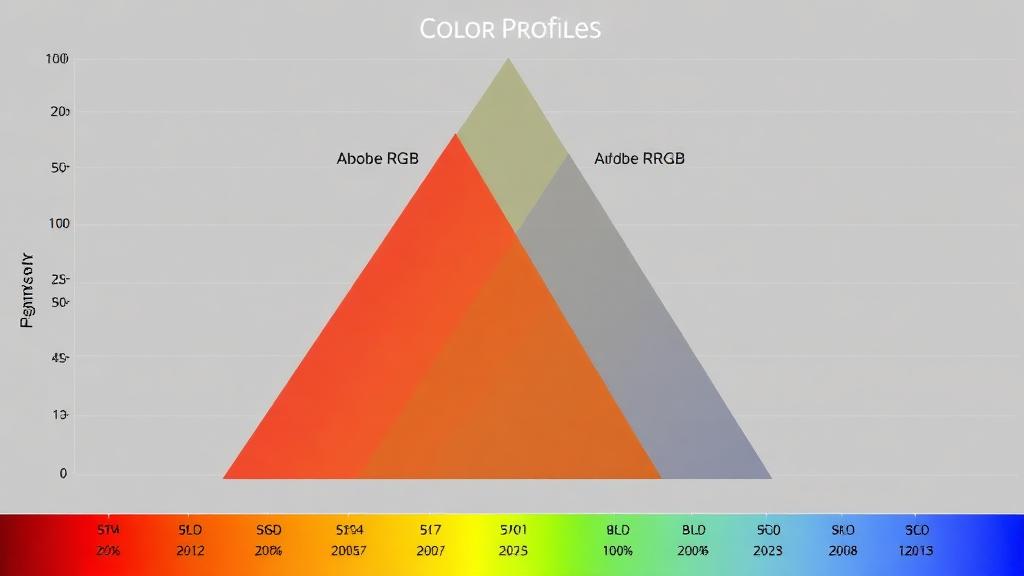
What Are Color Profiles?
A color profile is a mathematical description of how a device (monitor, printer, camera) interprets color numbers. Without profiles, the same RGB values can look completely different on different screens.
When you specify #FF0000 (pure red), what exact shade of red is that? sRGB says it's one specific red. Adobe RGB says it's a different, more saturated red. Display P3 says it's yet another. Color profiles define these relationships precisely.
Understanding Color Spaces
A color space is the range (gamut) of colors a profile can describe. Think of it as a container—bigger containers hold more colors.
The Hierarchy of Common Color Spaces
From smallest to largest gamut:
- sRGB — smallest, but universal
- Display P3 — ~25% larger than sRGB
- Adobe RGB — ~35% larger than sRGB
- ProPhoto RGB — ~90% larger than sRGB (covers nearly all visible colors)
Why Not Always Use the Largest?
Larger gamuts mean more colors, but also:
- Greater risk of banding in gradients (colors are spread thinner across the available bit depth)
- Require higher bit depth (16-bit vs 8-bit) for smooth results
- Not all devices can display the full range
- Colors outside a display's gamut get clipped, potentially looking wrong
sRGB: The Web Standard
sRGB (Standard RGB) was created in 1996 by HP and Microsoft to standardize color on consumer displays.
Key Facts
- Gamut: Covers ~35% of visible colors
- Standard for: Web, email, social media, consumer displays
- White point: D65 (6500K daylight)
- Gamma: 2.2 (approximate)
When to Use sRGB
- Always for web content (HTML, CSS, images on websites)
- Social media posts and stories
- Email graphics and attachments
- Any image that must look consistent across devices
- UI/UX design for web and mobile
sRGB Hex Examples
When you write #3B82F6 (a nice blue), you're implicitly working in sRGB. Every web browser assumes sRGB unless told otherwise.
The 8-Bit Reality
In 8-bit sRGB, each channel has 256 levels, giving 16.7 million total colors. This sounds like a lot, but in practice, subtle gradients (like blue sky) can show visible banding. For critical work, use 16-bit depth in your editing application, then export to 8-bit sRGB for delivery.
Adobe RGB: The Photography Standard
Adobe RGB was created in 1998 to encompass the CMYK gamut, making it ideal for print-destined photography.
Key Facts
- Gamut: ~50% of visible colors (35% larger than sRGB)
- Advantage over sRGB: More vivid greens, cyans, and some blues
- Standard for: Professional photography, print production
- White point: D65
When to Use Adobe RGB
- Camera capture: Set your camera to Adobe RGB for the widest capture
- Photo editing: Edit in Adobe RGB, convert to sRGB for web delivery
- Print-bound images: Preserves more of the CMYK gamut during conversion
- Fine art reproduction: Maximum color fidelity for giclée prints
The Conversion Warning
If you display an Adobe RGB image on a web page without converting to sRGB first, it will look desaturated. Browsers interpret untagged images as sRGB, so the wider-gamut values are squeezed into a smaller range.
Always convert to sRGB before uploading to the web. See our conversion guide for workflow details.
Display P3: The Apple Standard
Display P3 is Apple's chosen wide-gamut color space, based on the DCI-P3 cinema standard.
Key Facts
- Gamut: ~25% larger than sRGB, particularly in reds and greens
- Devices: All modern Apple devices (iPhone, iPad, Mac, Apple Watch)
- Also used by: Samsung flagship phones, many modern OLED displays
- White point: D65
Why P3 Matters for Designers
If you design only in sRGB, you're leaving 25% of your Apple users' display capability unused. Vibrant reds, deep greens, and rich oranges that P3 can show won't appear in sRGB designs.
Using P3 in CSS
Modern CSS supports Display P3:
/* sRGB fallback + P3 enhancement */
.hero {
  background-color: #FF4500; /* sRGB fallback */
  background-color: color(display-p3 1.0 0.27 0.0); /* P3 version */
}

/* Using @supports for progressive enhancement */
@supports (color: color(display-p3 1 0 0)) {
  .accent {
    color: color(display-p3 0.92 0.2 0.38);
  }
}
P3 Colors You Can't See in sRGB
Some colors exist in P3 but not sRGB:
- Deeper, more saturated reds
- Richer greens (especially yellow-greens)
- More vivid oranges and magentas
On a P3-capable display, these appear noticeably more vibrant than their closest sRGB equivalents.
ProPhoto RGB: The Editing Powerhouse
ProPhoto RGB has the largest gamut of common working spaces.
Key Facts
- Gamut: ~90% of visible colors
- Use case: Photo editing workflow (Lightroom default)
- Warning: Contains colors that don't physically exist—impossible to display
- Requires: 16-bit depth minimum (8-bit = severe banding)
When to Use ProPhoto RGB
- As your editing space in Lightroom and Photoshop for maximum flexibility
- When you need to preserve all captured color data for future editing
- For archival master files
When NOT to Use ProPhoto RGB
- Never for web delivery
- Never for final output without conversion
- Never at 8-bit depth
How Browsers Handle Color Profiles
The Current State (2026)
- Chrome, Firefox, Safari, Edge: All support ICC v2 and v4 profiles for images
- Safari: Full Display P3 CSS support
- Chrome/Edge: P3 CSS support via
color()function - Untagged images: Assumed to be sRGB by all browsers
Best Practice for Web Images
- Edit in your preferred working space (Adobe RGB, ProPhoto RGB)
- Convert to sRGB for web delivery
- Embed the sRGB profile in the exported file
- For P3-capable audiences, provide P3 versions using
<picture>or CSS
<picture>
  <source srcset="hero-p3.jpg" type="image/jpeg" media="(color-gamut: p3)">
  <img src="hero-srgb.jpg" alt="Hero image">
</picture>
Setting Up Color Management
Photoshop
- Edit → Color Settings
- Working Spaces: RGB → Adobe RGB (for photo work) or sRGB (for web work)
- Color Management Policies: Preserve Embedded Profiles
- Enable "Ask When Opening" for mismatches
Lightroom
- Lightroom uses ProPhoto RGB internally (no option to change)
- Export settings determine the output profile:
- Web: sRGB
- Print: Adobe RGB or printer profile
- Archive: ProPhoto RGB, 16-bit TIFF
Figma
Figma works in sRGB (technically, the unmanaged display color space). For P3 design:
- Use the P3 color picker in Figma (if available)
- Or specify P3 values in CSS during development
For CSS Variables
When defining your design system colors, document both sRGB and P3 values. Check our guide on CSS color variables and design tokens for implementation patterns.
When Wide Gamut Matters
It Matters For:
- E-commerce product photography: Accurate color = fewer returns
- Art and photography portfolios: Vibrant display of creative work
- Luxury brand websites: Rich, saturated brand colors
- Food photography: Appetizing reds, greens, and golden tones
- Travel and nature: Vivid skies, foliage, sunsets
It Doesn't Matter For:
- Text-heavy documentation
- Simple UI with muted palettes
- Business applications and dashboards
- Any content where accessibility contrast is the primary concern
Quick Reference: Which Profile When?
| Scenario | Color Profile |
|---|---|
| Website images | sRGB |
| Social media | sRGB |
| Camera shooting (RAW) | Camera native (widest) |
| Photo editing | ProPhoto RGB (16-bit) |
| Print delivery | Adobe RGB → CMYK profile |
| Apple-optimized web | Display P3 with sRGB fallback |
| Email graphics | sRGB |
| Video editing | Rec.709 (similar to sRGB) |
Explore Colors Across Spaces
Understanding color profiles helps you make the most of every display. Use Coloracci's AI palette generator to create harmonious color schemes, then implement them with the right profile for each medium—sRGB for universal web compatibility, P3 for Apple-optimized experiences, and Adobe RGB for print perfection.